


Xaurus and Swinger — trading robots for MetaTrader 5 with AI Pro100 self-optimization
Two trading systems — trend-following and counter-trend — with the same AI self-optimization mechanism. Optimize for your market and broker before you buy: the demo version from MQL5 Market already contains everything you need.
Three ways to work with AI Pro100
Trade
Buy or rent the robot and trade on your own accounts: the AI Pro100 mechanism selects the settings for your market.
Robots →Copy trades
Prefer not to trade yourself — subscribe to the XaurusQuant account and copy AI Pro100 trades on your own account. The CopyFX copying service is provided by the broker RoboForex.
Learn more →Manage
Your strategy — our experience: we formalize it, equip it with the AI Pro100 mechanism, publish it on MQL5 Market and build a website for sales.
Turnkey →Two trading systems — one AI optimization mechanism
Xaurus and Swinger are different trading systems with an identical AI Pro100 self-optimization mechanism; the inputs, controls and guide are shared.
Xaurus AI Pro100
A trend-following reversal robot that uses a variable (adaptive) risk level per trade to trade volatility. This robot needs strong moves, but their direction does not matter.
Instruments: XAUUSD (primary), BTCUSD.
Swinger AI Pro100
A counter-trend robot that trades across the range from medium-term swings to intraday scalping. The trading principle is mean reversion.
Instruments: XAUUSD and BTCUSD (primary).
How it works
Four steps from the demo version to trading — you can try the optimization before you buy.
Pass budget, select “Slow complete algorithm” with the Custom max criterion — and Start.Guide, §5.1 — preparation and settings →Equity TP $ and the protective threshold Equity SL % are set before the start. When the target is reached, all positions are closed, trading stops, the account is released into the Hall of Fame, and the robot begins a new cycle with re-optimization for the current market.Promos
Three current offers — details and coupons on the “Promos” page. Promos are valid until 01.01.2027 and are not combined: only one applies.
Rent — only on mql5.com, .
Invest
Copying AI Pro100 trading via CopyFX — the trade-copying service of the broker RoboForex. The three strategies with the highest return:
Questions and answers
Can I try before buying?
Yes. The test version of each EA is available via the link in the “Robots” tabs (a post in our Telegram) — it is a separate file for the Strategy Tester only: optimization and any SSN work, trading on demo and live accounts is disabled. The free demo version from MQL5 Market contains the same tester build and the PDF guide.
How does a direct purchase differ from buying on mql5.com?
On mql5.com the licence is limited to 5 activations tied to hardware; with a direct purchase — to 20 trading account numbers. A discount applies to direct purchases; rent is available only on mql5.com.
Which instruments and which broker?
XAUUSD and BTCUSD. Ready-made sets are published for the RoboForex Pro account; a different broker or account type requires re-optimization (guide, §1.8).
Do I need a VPS?
The EA runs in the MetaTrader 5 terminal for as long as the terminal is running. A VPS or an always-on computer is advisable, as for any EA.
What is the minimum deposit?
It depends on the SSN set and the MM risk scale. The example sets are designed for a deposit of 10 000 in the tester, which on a RoboForex Pro cent account corresponds to 100 USD.
What is SSN?
A compact code for the EA's complete set of settings: one code — one reproducible setup. Simply enter it in the SSN code input (guide, §1.5).
Do you guarantee profit?
No. Backtest results on history illustrate how the algorithm works and are not a promise of results. Leveraged trading can lead to the loss of your deposit — see the risk warning.
How do I limit the risk?
The Equity SL % threshold and the Equity TP $ target are set before trading starts; deposit only the funds whose loss you can accept (guide, §1.1, §1.3, §1.4).
How do I get updates and support?
On mql5.com — through the store. With a direct purchase, updated builds and support are provided through the official Telegram contact given at the time of purchase.
How do I bind another account?
Message @D_Kab_86 from the official account: “bind account N to my EA”. You will receive an updated build in reply; the limit is 20 account numbers per licence.
No promises of profit
There are no promises of profit on this site: all the SSN codes and charts we present are provided as examples of how the backtesting algorithm works on history and are not trading recommendations. Although you could enter them in the SSN code field and start trading with them right away, we do not recommend doing so; instead, we recommend re-optimizing the robot yourself and searching for settings according to the AI Pro100 guide — this can be done before you buy the robot.
Risk warningAI Pro100 robots
Xaurus and Swinger are two different trading systems (trend-following and counter-trend) with an identical AI Pro100 self-optimization mechanism. Their inputs, controls and guide are shared; only their internal trading logic differs.
AI Pro100 — Trader's Guide
v1.2 · September 2026 · one guide for both trading systems — Xaurus AI Pro100 and Swinger AI Pro100
1Fundamentals
The AI Pro100 family robots are a tool for high-risk margin trading designed to grow an account fast. Xaurus AI Pro100 and Swinger AI Pro100 are two different trading systems (trend-following and counter-trend) with an identical AI Pro100 self-optimization mechanism: their inputs, controls and this guide are shared, so everything written here applies equally to each of them. The trading logic differs between the systems; it is not disclosed and is not configured directly.
1.1Risk profile and the dedicated-funds rule
A trader using AI Pro100 always risks 100 % of the funds placed on the trading deposit. Money that must be protected from loss should be kept out of this trading — never deposited. A sensible approach is to run the high-risk trading in parallel with conservative instruments (bank deposits, real estate) holding the rest of your capital, optimizing the overall risk profile of the portfolio.
Any trading that is never stopped, with profit never withdrawn in time, ends in the complete loss of the deposit — that is a mathematical fact, and it is especially true for highly leveraged forex trading. Therefore the profit target at which the account is closed and trading stops must be defined before trading begins — see §1.4.
1.2Trade series and virtual levels
Trade series — the basic concept of AI Pro100 trading. It is a sequence of trades that starts with a base-lot entry and ends when all positions of the series are closed at a combined profit (the virtual take-profit of the series) or, in the worst case, by an emergency stop (the protective stop or a Stop out). Intermediate closures inside the series — including losing ones — do not end it: the EA keeps working until the series is finally closed. The account balance at the start of a series is the reference point for the Equity SL % protection (§1.3), and the number of series enters the Rating formula (§1.9).
The EAs place no pending orders and no broker-side stop-losses or take-profits (the only exception is the Equity SL % protective stop, §1.3). Instead, all levels are “virtual”: the EA draws them on the chart and executes them itself. Levels are placed, moved and executed no more than once per minute bar. This is deliberate behaviour, tied to the architecture of the trading as a whole.
The absence of an SL in the order properties does not mean the EA “trades without stops” — it virtualizes them, among other reasons because we are convinced the broker has no need to know our trading levels before the moment they are actually executed.
1.3Drawdown control: Equity SL %
The Equity SL % input sets a percentage of the account balance taken at the
start of the current trade series, below which the account equity must not fall while
that series develops. As long as series end normally — at a profit — the reference
balance in practice equals the latest balance high-water mark (an emergency series
ending — the protective stop, Stop out — halts the EA,
§8.5).
The mechanism is enforced by a real broker-side stop-loss: the EA computes
the common price level at which account equity would touch the threshold and places it
as the stop-loss on all of its open positions (recomputing on every new opening inside
the series). When this stop fires, all positions are closed and the EA stops
trading — see §8.5. A value of 0
disables the mechanism.
Equity SL % is not a guarantee and must not be treated as one. It is a tool that may work as expected — or may not (gaps, slippage, broker-side circumstances). The only truly effective protection against losing more than planned remains the dedicated-funds rule (§1.1).
1.4Profit target: Equity TP $
The Equity TP $ input is the target account equity in the deposit currency.
As soon as equity reaches this value while the EA is active, all positions are
immediately closed at market and the EA stops trading. A value of 0 disables
the mechanism.
Set the target with a margin for closing slippage — for example +10 % over the goal
if the aim is to secure at least a given percentage. Remember that +200 %
profit corresponds to multiplying the initial deposit by 3 (not 2). Example:
starting deposit 7,000, target +200 %, 10 % slippage margin —
Equity TP $ = 7000 × 3 + 10 % = 21,000 + 2,100 = 23,100.
We recommend deriving the profit target itself from the set's test period: plan for roughly ¼ of the historical span on which the set (SSN) tested profitably. Example: a set optimized on the last 2 years with an average profit of 20 % per month — plan for 6 months of work (2 years / 4) with a result of 1.2⁶ ≈ 3, i.e. about +200 % in half a year (an example of target arithmetic, not a return forecast). Once the profit or time goal is reached — re-optimize for the latest market (§5) and start a new round: AI Pro100 trading is built on efficient self-optimization with minimal trader involvement.
1.5The SSN code and closed settings
SSN (Setup Serial Number) — a compact text code that
carries the complete trading configuration of the EA: all internal algorithm
parameters, the symbol, the signal timeframe, the risk scale (MM) and the server time
profile. Example: xu6HDe8KUOF4tNV2x1UOPP. One code — one reproducible
trading setup: paste it into the SSN code input and the EA trades or tests
exactly that set.
The EA does not disclose its trading parameters. That is not only protection against copying and reverse engineering — it is a usage methodology: the trader gets by entirely without deep knowledge of the internals while keeping the full power of flexible optimization for any market — on equal terms with the developers. In our own trading, including our public signals (copy service), we use exactly the same mechanism and the same EA version that we distribute.
We publish up-to-date sample sets in open sources — in particular, they can always be found on the product page at mql5.com. The core idea of AI Pro100, however, is different: every trader — even before purchasing the robot — can use this guide to run the powerful self-optimization engine and find settings that suit them personally: their market, broker, capital and risk appetite. The SSNs we publish are examples of what the engine produces, meant to demonstrate its capabilities; they are not trading recommendations.
1.6How AI Pro100 optimizes
The AI Pro100 methodology applies artificial-intelligence techniques to multi-parameter optimization: the search covers a settings space that brute force could never traverse in reasonable time. Optimization runs in the standard MetaTrader 5 Strategy Tester in the “Open prices only” model on an M1 chart — with results more than 95 % identical to the “Every tick based on real ticks” model.
You should know: the “Open prices only” model on M1 always uses a knowingly understated spread (the minimum spread of each minute bar), so re-running a result on real ticks almost always shows a somewhat lower profit. We have done everything possible — and largely succeeded — to keep the overall test profile intact and matching between the two models in most cases.That is why we pay no attention to “real ticks” during optimization itself — and only at the very last stage, before taking a set live, we always re-verify it in the “Every tick based on real ticks” model specifically (not “Every tick”, which is the same M1 bars “from another angle”: ticks generated by the terminal's algorithm). The EA has a built-in mode for exactly this re-verification — §6.5.
Using the engine is as simple as it gets: set a pass budget in the
Pass budget input, select the “Slow complete algorithm” mode with the
Custom max criterion — and press Start (§5).
1.7The reliability — profitability axis
Sets used for trading live on a “reliability — profitability” axis. A set's position on this axis is determined by several factors, each on its own and in combination:
- The optimization period. Sets found on the last half-year of history are, on the whole, considerably more profitable than sets found on the last 2 years. Our premise is that the market changes constantly, and it is the most recent history that reflects the currently active tendencies; last year's tendencies may well be dead by now. This is no fringe theory — it is the well-established Adaptive Market Hypothesis (AMH). Hence a set will usually not work in the tester outside its optimization period (or will work with a deeper drawdown) — that is normal behaviour. A longer period shifts sets toward reliability at the cost of profitability; a shorter one — the other way. The golden mean is suggested by the number of trades: about 1,000 trades or more per test period looks good even for a relatively short period (half a year or a year), provided the planned trading time for the set does not exceed ¼ of the test period and the profitability of that quarter satisfies your risk-reward criteria.
- The forward check (the
Forwardinput) — reserving part of the period for out-of-sample verification, §6.1. - The drawdown ceiling (the
Drawdown to %input) — the lower the allowed drawdown, the lower the overall profitability of the resulting sets and the higher their hypothetical survivability, §6.2.
1.8Broker and account-type binding
Settings produced by AI Pro100 optimization are usually specific to a particular quote source — that is, to a given broker and account type. We run our tests and publish sample settings for the RoboForex broker, account type Pro. When trading with another broker — or even another account type of the same broker (e.g. RoboForex ECN) — re-optimization for the quirks of that account's quotes may be required. This is a normal process: the robots exploit intraday market dependencies that can differ noticeably even in quotes of the same instrument from different sources. Obviously, the resulting SSNs should be traded with the very broker and account type on whose quotes they were obtained.
1.9The Rating quality score
The AI Pro100 engine uses its own “smart” quality score for a test pass — Rating; all optimization results are ranked by it. To see it in the tester's Optimization tab, select the Custom max criterion before starting (the drop-down next to the optimization mode on the Settings tab).
A positive Rating is earned only by passes that: are profitable over the whole test
period; had no Stop out / Margin call events; and satisfy the Optimization group
inputs set before the start — passed the forward check (if Forward is
not 0 %), stayed within the Drawdown to % ceiling and collected at
least Min deals trades.
The Rating formula intelligently combines: geometric-mean profitability; the number of trade series (unique entries); profit uniformity — equity curves made of a few large one-off “shots” get a low rating, other things being equal; and the maximum relative equity drawdown (a metric MetaTrader 5 does not show in the Optimization tab but reports on the Backtest tab as Equity Drawdown Relative).
2EA inputs
There are just ten external inputs, identical in both EAs — three groups in the properties window. Everything else is carried by the SSN set code (§1.5).
| Input | Default | Purpose | Section |
|---|---|---|---|
| === ROBOT SETUP === | |||
| SSN code | empty | The set code. The EA trades and tests exactly this set. An empty code with
Pass budget = -1 runs the built-in demonstration set. |
§4, §8 |
| Minimal deposit | 0 | The risk scale (MM): the deposit amount, in account currency, on which the set
trades the 0.01 base lot. 0 — taken from the set code; a value >0
overrides the code's MM. The optimization checkbox on this input enables special
modes (§6.3, §6.6). |
§5, §6 |
| Magic (seed) | 0 | The identifier of the EA's trades on the account — each running instance must have its own. During optimization it is the search seed: the same Magic with the same settings gives a reproducible seeding *. | §5, §8 |
| === GOALS AND GUARDS === | |||
| Equity SL % | 0 (off) | Protective equity floor as a percentage of the balance at the start of the current trade series; enforced by a real broker-side stop, firing halts the EA. | §1.3 |
| Equity TP $ | 0 (off) | Target account equity: once reached, all positions are closed at market and trading stops. | §1.4 |
| === OPTIMIZATION === | |||
| Pass budget | -1 | A multi-mode input. When an optimization is started — the cycle budget in tester
passes (from 500 to 1,000,000). In a single test: a value ≥ 1 — the
row number of the last optimization to reproduce it exactly; -1 — a
regular test driven by the SSN. A negative -N at optimization start —
the confirmation mode: re-runs the N best book rows under precise modelling. |
§5, §6 |
| Forward | 0 % | The share of the test period reserved for the built-in forward check (25/50/75 %). 0 % — forward disabled. | §6.1 |
| Drawdown to % | 100 (off) | Ceiling on the maximum relative drawdown: sets with a deeper drawdown are deemed unfit. | §6.2 |
| Min deals | 100 | Minimum number of trades per pass (the Trades column): below the threshold the result is statistically empty. 0 — threshold off. | §6.2 |
| Timing profile | EU DST +2/+3 | The broker's server time profile. Optimization only — it is written into every produced SSN; in tests and trading the profile comes from the set code itself. | §7 |
* The seeding itself is reproducible; the final optimization result is not guaranteed to be identical: what grows out of that “seed” depends on the order in which agent results arrive in the MetaTrader 5 tester, which cannot be predicted exactly.
Input names, groups and defaults are identical for Xaurus and Swinger — this guide is EA-agnostic. The only difference between the robots is their internal trading logic.
3Quick start: the mql5.com demo
You can try the full AI-optimization cycle before buying. Per marketplace rules the Market demo does not execute optimization — so the EA itself hands you a dedicated tester build free of that limitation.
On the product page (Xaurus AI Pro100 or Swinger AI Pro100 at mql5.com) press Free demo — MetaTrader 5 downloads the demo version of the EA.
Run the EA once in the Strategy Tester (any single test — e.g. per
§4 on default inputs). On its first run the EA writes
two files — to the local MQL5\Files of the terminal data folder and to the
shared terminal folder — and prints their full paths to the journal:
<Robot>MK6_<version>.pdf— this guide;<Robot>MK6_<version>.zip— a container with the tester build<Robot>MK6_test_<version>.ex5.
Unzip the archive with Windows tools and place
<Robot>MK6_test_<version>.ex5 into the terminal's
MQL5\Experts folder (menu File → Open Data Folder),
then refresh the Navigator list (right-click → Refresh).
We distribute the tester build freely outside the Market as well — the file
<Robot>MK6_test_<version>.ex5 may be passed on to other traders
together with this guide. The current tester builds of Xaurus AI Pro100 and Swinger AI Pro100
can be downloaded from our Telegram: t.me/xauruspro/16.
4Regular backtest
A single Strategy Tester run: checking a ready-made set on history — a sample set from the product page, or a result of your own optimization.
4.1The tester's Settings tab
| Field | Value |
|---|---|
| Expert | The AI Pro100 EA (for the Market demo — the tester build, §3) |
| Symbol | The instrument the set was produced for (the symbol is embedded in the SSN; broker suffixes like .m / .DC are fine — the base name is what counts) |
| Timeframe | Always M1 |
| Date (Custom period) | The history period of interest |
| Deposit | Test deposit; for comparability with our samples — 10,000 (metals, crypto) or 1,000 (forex pairs) |
| Leverage | The maximum leverage your broker actually provides on this account type (§8.1) |
| Modelling | “Open prices only” — quick estimate (the model AI optimization itself runs in); “Every tick based on real ticks” — precise verification (§1.6) |
| Optimization | Disabled (single test) |
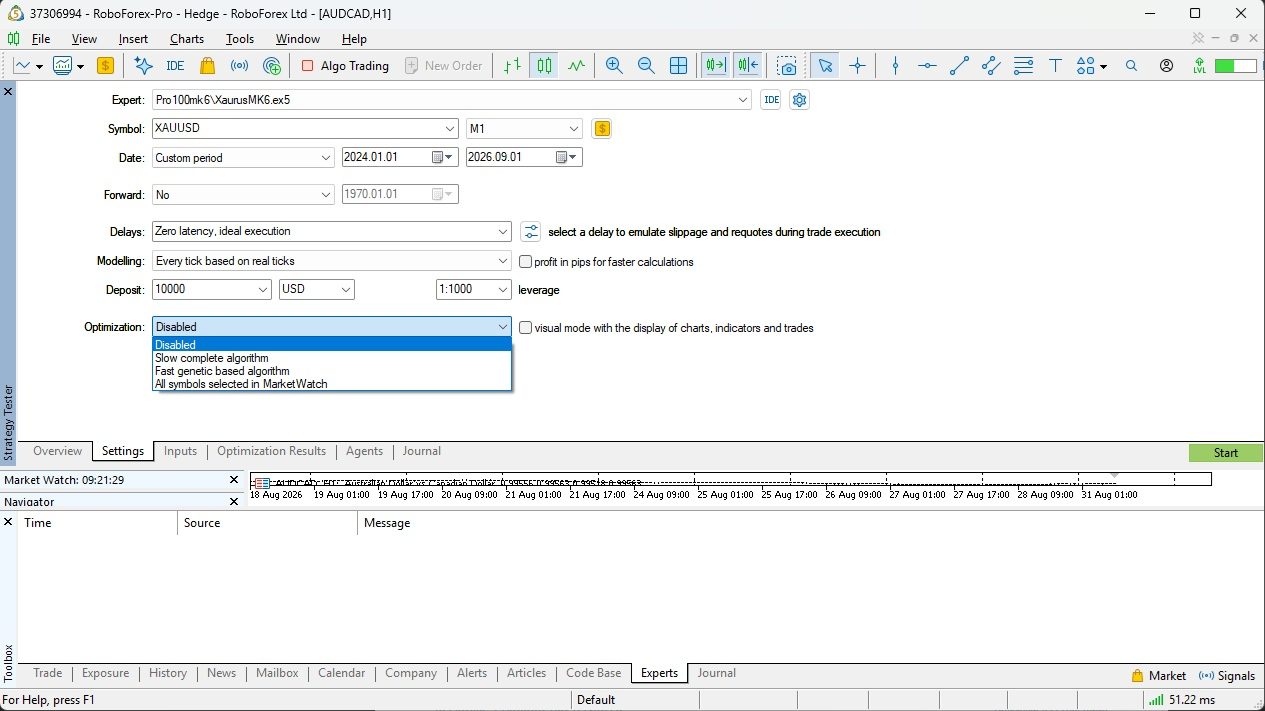
Our sample settings are published for the RoboForex broker, account type Pro (§1.8). The quickest way to get quotes of exactly that account type is to connect to our demonstration access, no personal cabinet required: File → Open an Account → find RoboForex → “Connect with an existing trade account” — the credentials are in the snapshot below.
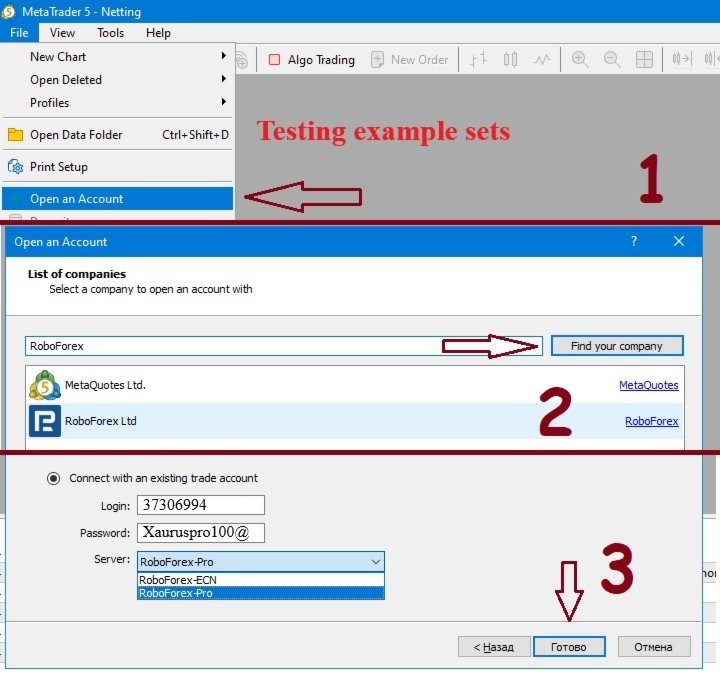
4.2The EA's Inputs tab
SSN code— paste the set code. Left empty (withPass budget = -1) the built-in demonstration set is run.Minimal deposit— 0 (risk scale from the set code). A value >0 overrides the set's MM — a way to try the same set at a different risk scale.Equity SL %/Equity TP $— optional: they work in the tester too, so you can rehearse your protection and target plan right away (§1.3–1.4).- Everything else — defaults.
4.3The journal after the test
Progress and results are printed to the tester agent's journal (the Strategy Tester's Journal tab). The key lines:
The MK3 RC pass line is the quality summary: Rating
(§1.9), annual geometric-mean profitability, maximum
relative drawdown, number of trades. The full test statistics are in the tester's
standard Backtest / Graph tabs.
The SSN of the actually applied set is always printed as the last log line — copy the code straight from there instead of hunting for it in the book or showcase.
5AI Pro100 optimization
The basic scenario: find fresh sets for your instrument, broker and period. Everything happens inside one Strategy Tester optimization — no external software.
5.1Preparation and settings
Make sure M1 history of the symbol is loaded for the whole optimization period (the tester downloads it on the first run anyway, but that takes time).
Settings tab: Symbol — your instrument; Timeframe — M1; the date range (§1.7 — typically the last 0.5–2 years); Deposit — 10,000 for metals and crypto, 1,000 for forex pairs; Leverage — your account's maximum; Modelling — “Open prices only”; optimization mode — “Slow complete algorithm” with the Custom max criterion; the tester's own Forward — No (the built-in MT5 forward is incompatible with AI Pro100 — the EA has its own, §6.1).
Inputs tab: SSN code — empty (a non-empty code
at cycle start fails initialization); Pass budget — type the budget into
the Value column. Nothing else: no optimization checkboxes, no Start/Step/Stop
columns — the EA enables and configures the sweep axis itself on start.
The budget is the search quality: 20,000 — a quick optimization, 50,000 — standard quality, 100,000 — high. The minimum is 500, the ceiling is 1,000,000.
Timing profile — pick your broker's server time profile before
the start (§7): during optimization it is
written into every produced set. Magic (seed) — any number; it seeds the
search, and repeating with the same value reproduces the seedingThe
seeding itself is reproducible; the final optimization result is not guaranteed to be
identical: what grows out of the “seed” depends on the order in which agent results
arrive in the MetaTrader 5 tester, which cannot be predicted exactly.. All
other inputs — defaults (no optimization checkboxes anywhere; the only exceptions are
the special modes of §6.3 and
§6.6).
Agents — local only (disable MQL5 Cloud Network: cloud agents take no part in the AI cycle — their passes return zeros without spoiling the result, but bring no benefit either). Watch Windows Task Manager for memory or CPU overload during the optimization: under overload the pass quality may degrade unsystematically — agents skip tasks. This is especially relevant for “real ticks” verifications over a long period (§6.5). If the PC cannot cope with the full agent list — disable some of them in the tester's Agents tab in advance, before the start.
Press Start. Do not close the terminal until the run finishes — the showcase and the results workbook are built at the very end.
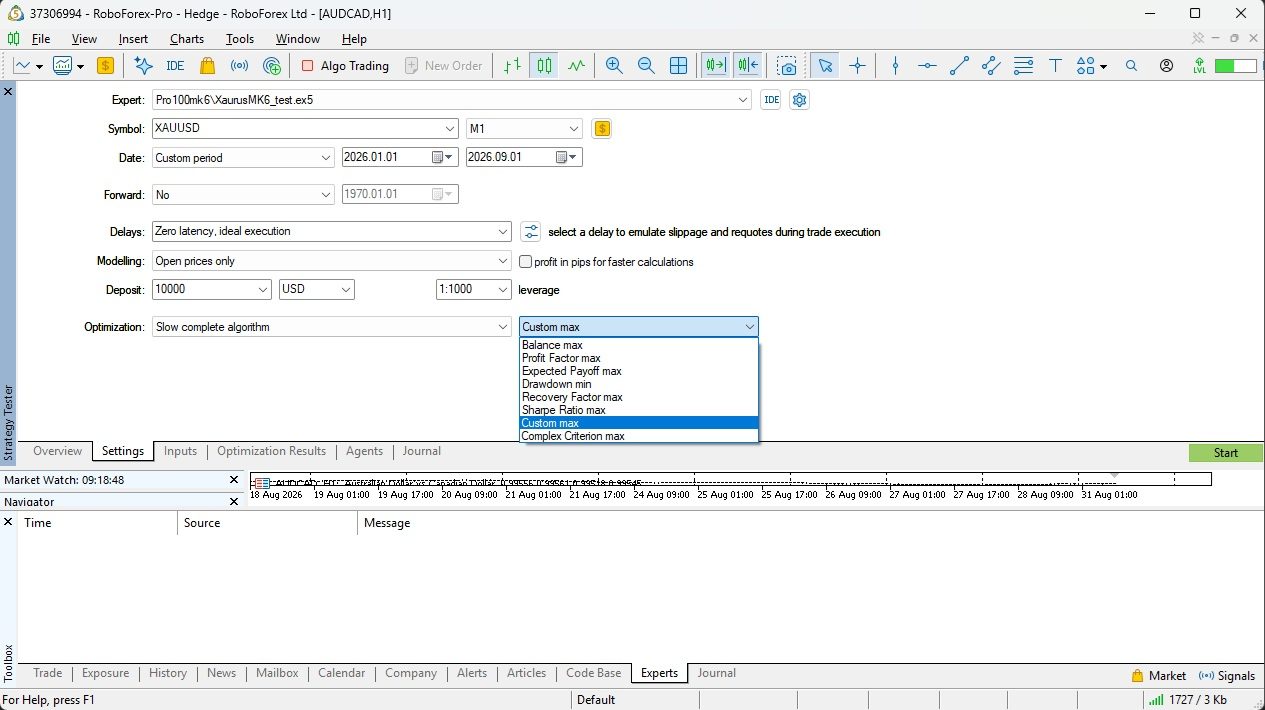
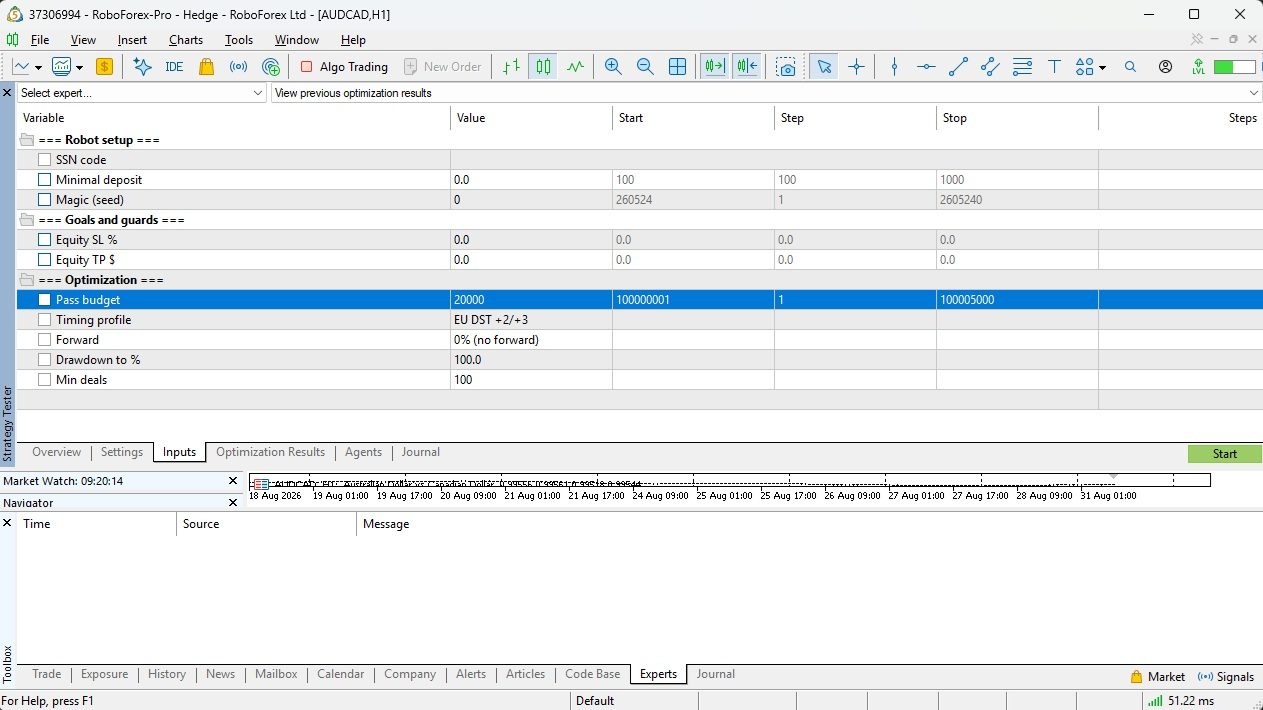
5.2Optimization progress: the Experts journal
Cycle messages go to the terminal's Experts journal (not the tester's). A normal run looks like this:
- The first line is the run's settings summary: budget, forward, MM ladder, filters.
- The
building book, please wait...line appears when the passes are done and the EA is assembling the results workbook; on big budgets this takes minutes — the notice also hangs on the chart, keep the terminal open. - The showcase is the 26 sets with the highest Rating: place | cluster (
C<k>, §5.5) | SSN | Rating | Profit | drawdown | profit factor | trades |idx— the row number for reproduction. - The last line is the full path to the xlsx workbook.
In the tester's Optimization tab the Result column is the Rating. Zeros in Result are normal: they are shown by passes that failed the filters or have no relevant rating (§6.2); the true values of all passes are in the book.
The Stop button is a pause, not a cancel: progress is saved, no book is built on interruption. To resume — press Start again with the same settings (§6.4).
5.3The results workbook (xlsx)
The workbook is the file <Robot>_<symbol>_<datetime>.xlsx
(e.g. Xaurus_XAUUSD_20260830120000.xlsx) in the MQL5\Files folder
of the terminal data directory. The exact path is always printed in the journal.
Workbooks accumulate — old ones are not deleted.
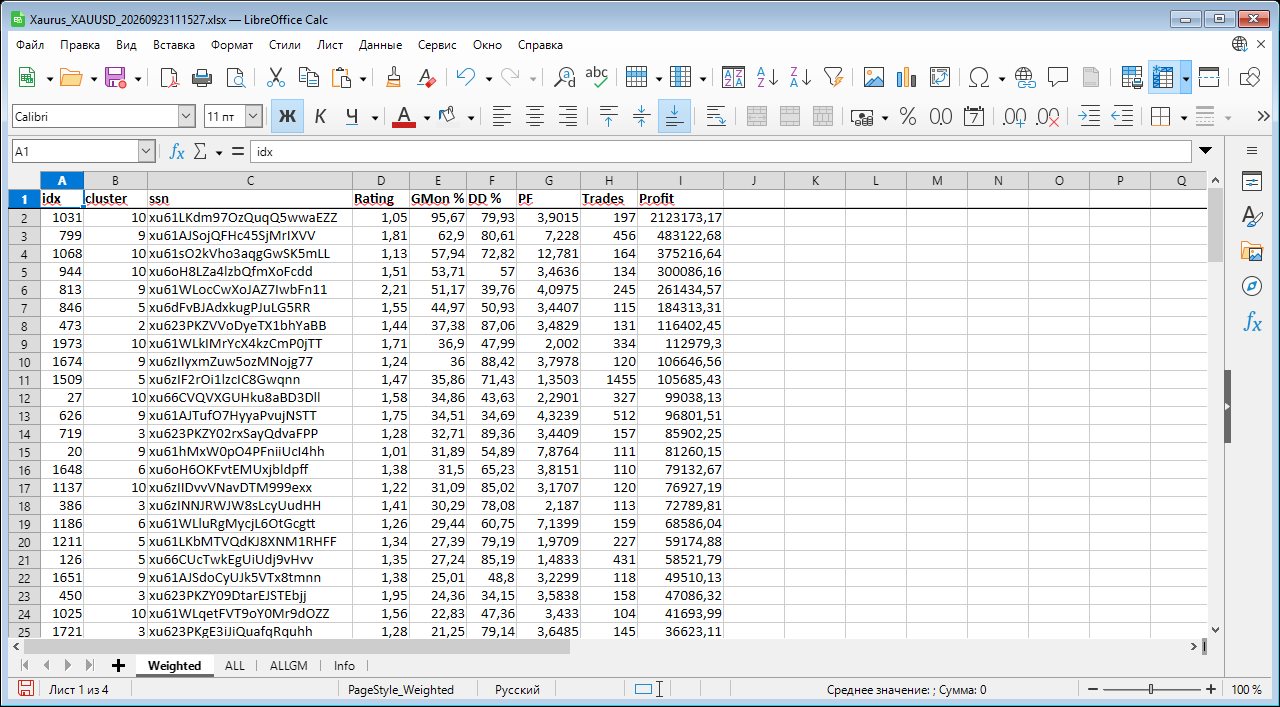
The book has four sheets, in this order: Weighted, ALL,
ALLGM and Info. The first three are the same results table in
a different selection and order; the fourth is the run's passport.
The Weighted sheet — start your selection here
Weighted is the first sheet of the book and, in our view, a
balanced compromise between rating and profitability, based on the overall
quality of the optimization results obtained.
What it does, in plain words: from every logic (cluster,
§5.5) it takes the top-rated and the most
profitable sets, ranks what it took by profitability (GMon %) and cuts
off the rows that are weak by rating. Finally, sets with practically the same balance
curve are collapsed — the most profitable one of the group remains.
Columns of the Weighted, ALL and ALLGM sheets
| Column | Meaning |
|---|---|
| idx | Plan row number — the value for exact reproduction (§5.4) |
| cluster | Trading-logic cluster number 1..10 (§5.5) |
| ssn | The set code — ready to copy into the SSN code input |
| Rating | The quality score (§1.9); an ∞ sign means the criterion overflowed (the row is not broken, but comparing it by rating is meaningless) |
| GMon % | Geometric-mean profitability, % per annum |
| DD % | Maximum relative equity drawdown |
| PF | Profit factor |
| Trades | Number of trades |
| Profit | Profit over the test period |
The ALL, ALLGM and Info sheets
The ALL sheet holds the rows by descending Rating: take it when rating
matters most. The ALLGM sheet has the same columns but is ordered by
descending GMon %: when profitability matters most. The
contents of ALL and ALLGM differ — each sheet has its own selection: out of a
group of similar sets ALL keeps the best by Rating, ALLGM keeps the most profitable one,
and the 100-rows-per-cluster cap is counted by each sheet's own metric. So the number of
rows may differ between the sheets, and a row of one sheet need not be present on the
other.
The book holds only the rows that passed selection: a row that failed the
Drawdown to % / Min deals filters
(§6.2) or, in risk mode, a set with no working
ladder level (§6.3) does not enter the book at
all.
The book removes clones in two ways. Full duplicates (DD % and Profit equal to 2 decimal places) are collapsed at once. Besides them, the book collapses sets with practically the same balance curve — one set of such a group remains in the book: on the ALL sheet the best by Rating, on ALLGM and Weighted the most profitable one.
The book's size is capped: each cluster (§5.5)
contributes at most 100 rows to each sheet — on ALL the 100 best by
Rating, on ALLGM the 100 best by GMon %, and on Weighted the 50 best by
Rating and the 50 best by GMon % (if one of the lists is shorter, the
remainder is taken from the other). That way the book keeps both the top-rated and the
most profitable sets of every logic, while the long tail of near-identical variations
does not bloat the file.
The Info sheet is the run's passport: EA name and version, symbol,
period, deposit, leverage, budget, search seed, filters and service counters; among them
filtered_out — how many rows the filters rejected, cap_out_all
and cap_out_gm — how many rows the 100-rows-per-cluster cap cut off on the
ALL and ALLGM sheets.
5.4Reproducing a row
Any optimization result reproduces bit-for-bit as a single test. Three ways:
- Double-click the row in the Optimization tab — the terminal launches a single test of that row itself.
- The idx number from the book — type it into
Pass budgetof a single test (requires the service folder of the last run, which is kept automatically). - The SSN code — copy it from the book or the showcase into the
SSN codeinput. The everlasting way: the set is fully embedded in the code and depends on no run files.
At the end of every single run the journal prints
Pass set: TF M5, cluster 7 — the signal timeframe and cluster of the set
(the book has no TF column — the timeframe is optimized like any other parameter and
lives inside the SSN).
After clicking a row, its number stays in the Pass budget input. Starting
an optimization with that value is rejected with a hint (protection against
accidentally ruining the run) — type the budget anew before a new cycle.
5.5Clusters: 10 trading-logic groups
Every book and showcase row carries a cluster number — 1..10. A cluster is a stable group of trading logic: sets of one cluster trade in fundamentally the same way, sets of different clusters — in fundamentally different ways. The number is a pure function of the set itself: it depends neither on the run nor on the instrument, so books of different runs are comparable. What exactly stands behind a number is not disclosed, and the number does not imply quality: C3 is not “better” than C7.
The top-26 showcase is assembled round-robin over clusters (up to 4 places per cluster) — so the top holds candidates of different logic, not 26 variations of one set.
There are no per-cluster sheets in the book: the cluster of every row is in the
cluster column of all three results sheets — Weighted, ALL and ALLGM; to
look at a single cluster, filter or sort the book by that column in Excel. The
100-rows-per-cluster cap (§5.3) applies here too, and
on every sheet: a large cluster contributes exactly 100 rows to a sheet.
When building a portfolio of sets, take rows from different clusters — so the portfolio does not end up a bunch of clones of one and the same trade.
5.6Picking a set from the book
- Start with the Weighted sheet — in our view it is a balanced compromise between rating and profitability, based on the overall quality of the optimization results obtained (§5.3).
- Then the
ALLsheet (best Rating on top) if rating matters more to you, andALLGM(bestGMon %on top) if profitability does. Check the drawdown (DD %) against your risk tolerance and your Equity SL % plan (§1.3). - Number of trades: aim for ~1,000+ per test period (§1.7).
- For a portfolio — different clusters (§5.5).
- Run the selected candidates through the precise mode — §6.5 — and only then allow them into live trading (§8).
6Advanced optimization
The tools that harden the result: the built-in forward, output filters, the risk ladder, pausing/resuming a run, and the final cross-check of the best sets under precise modelling.
6.1Forward testing: Forward
The Forward input reserves 25, 50 or 75 % of the test period for the
classic out-of-sample check — without leaving the single optimization. Our difference
from the classic approach: the search uses the latest history (closest to
“now”) while the check uses the earlier part
(§1.7: fresh patterns matter more than stale ones;
the earlier history serves as an extra trial).
Example: period 2024.07.01–2026.07.01, Forward = 50%. Sets are
searched on 2025.07.01–2026.07.01, then the best found are automatically re-run over
the whole 2024.07.01–2026.07.01 — survivors are those that also made money
on the earlier half.
- The pass axis widens automatically — forward passes are added on top of the budget, nothing to configure.
- In the Optimization tab the search (back) passes show Result = 0 while the forward passes show their forward Rating: sorting by Result gives a clean forward picture at once. The true ratings of back passes are not lost — they are in the book.
- The forward-run book: survivors by descending forward Rating (non-survivors do not enter the book); a collapsed Back column group (the “+” button) keeps each row's search-phase metrics. The sheets are the same four — Weighted, ALL, ALLGM, Info; the Weighted sheet of a forward book is built by the same rule (§5.3).
- In our own practice we mostly use 25 % or 50 %. Forward is off by default and not used in the sample sets we publish.
The Forward field of the tester's own Settings tab must stay No — the native MetaTrader 5 forward is incompatible with the AI Pro100 machinery.
6.2Output filters: Drawdown to % and Min deals
Drawdown to % — the ceiling on the maximum relative drawdown: a pass with
a deeper drawdown is deemed unfit. Default 100 — filtering off. The lower the
threshold, the lower the overall profitability of the resulting sets and the higher
their hypothetical survivability (§1.7).
Min deals — the minimum number of trades per pass (the Trades column): a
result below the threshold is statistically empty and gets rejected. Default 100; 0
disables the threshold.
How the filters act: a failing row does not enter the book (the
filtered_out counter on the Info sheet says how many), is left out of the
journal showcase and shows 0 in the Result column
of the Optimization tab. The search itself also respects the
filters: no budget is wasted on branches that clearly cannot pass the thresholds.
Because the thresholds shape the search itself, changing Drawdown to % or
Min deals makes it a different run: a finished run cannot be resumed or
extended with new values — only a fresh optimization.
6.3Risk ladder (Minimal deposit sweep)
The optimization checkbox on the Minimal deposit input with Start/Step/Stop
values enables the risk phase: after the main cycle the best sets are
automatically replayed on every MM level of the range, from the base downwards. The
smaller the MM, the larger the lot relative to the deposit: the ladder down is a ladder
of increasing risk.
- The base (top anchor) is the maximum of the range; it must not be below the Deposit of the Settings tab. Axis example: Start 10000, Step 1000, Stop 2000.
- For every set the EA picks the working level — the most aggressive MM
at which the set still passes the §6.2 filters and does not blow up; it lands in the
book's
MM mincolumn, and the row's SSN already carries that MM. - The level history is a collapsed column group (a “G/D” pair per level): red fill —
the level blew up,
cut— a level below the break was not computed (pointless), an empty pair — no data. - A candidate for which no level fits does not enter the book at all. Sets that never got a ladder (beyond the candidate-selection computation budget) do stay in the book: they rank in the common order with their base MM and an empty level history.
- In risk mode the journal showcase shows rows with a found working level — trade-ready sets straight from the journal.
The ladder can also be built on top of an already finished run: leaving
every other input untouched, tick the MM checkbox with a range and press Start — the
main cycle is not recomputed, only the ladder levels run live. The overlay's book is
written next to the run's book (suffix _ovl1, _ovl2…); during an
overlay the Optimization tab shows zeros — look at the book.
6.4Pausing and resuming a run
- Stop during an optimization is a pause: computing agents stop within seconds, progress is saved, no book is built. In the journal: AI Optimization INTERRUPTED at 1385 of 20000 passes: progress saved…
- To resume — press Start again with the same settings: the EA recognizes its interrupted run, restores the accumulated state and finishes the remainder (already computed passes come back instantly from the tester cache). In the journal: …resuming: 1625 of 20000 passes restored, continuing. Resume as many times as you like.
- Any change of the inputs that shape the run (budget, Magic, Forward, filters, ladder, Timing profile, Equity SL/TP, symbol/timeframe/dates) makes it a different run. If that would kill the interrupted run, the first Start refuses with advice to restore the previous settings; a second Start with the changes kept is a conscious fresh run.
- Pressing Start again after a normally finished run with the same
settings is refused (nothing to resume, the tester cache would replay everything at
once): clear the cache (right-click the run in the Optimization tab → delete) or
change Magic; if the cache is already cleared — just press Start a second time. Tip:
when making several similar runs in a row, bump
Pass budgetorMagic (seed)by one each time — then the cache never needs any attention.
6.5Precise-mode confirmation: Pass budget = −N
The final step before live trading (§1.6): re-run the best book rows under “Every tick based on real ticks” and get marks in the book — who got confirmed.
After a finished run, type a
negative number into Pass budget: -20 — check the top 20
rows of the ALL sheet.
Modelling — “Every tick based on real ticks”; the chart timeframe is still M1; the dates — the same (or deliberately different, see below).
Start. In the journal: Running 20 best passes from recent AI Optimization, and at the end — Confirmed 17 from 20 best records — see in book.
The outcome is the Pass column (the last column of all three results
sheets — Weighted, ALL and ALLGM): a green ✓ — the set
is confirmed by the precise model; a red ✗ — not confirmed; empty — the row was not
checked yet. Repeated -N launches accumulate the marks: failed rows are not
taken into the following checks, so -20 and then another -20 test
the next portion of candidates. Successive launches form a selection funnel.
The same -N mode can re-run the best rows under changed conditions — on
shifted dates (e.g. with fresh history appended) or another instrument. The EA names
every difference from the source run in the journal as a warning
(Runtime warning W23/W24/W25) and proceeds: judging whether such
a check makes sense is up to you. Sets that survive a chain of different conditions are
the most robust ones.
6.6Risk sweep of one set: SSN × Minimal deposit
How does one ready-made set behave across risk scales? Paste its code into
SSN code, tick the optimization checkbox on Minimal deposit with a
Start/Step/Stop range — and start the optimization. The AI layer stays out (a single
journal line, AIO passthrough: plain SSN x MM sweep…): it is a
plain MT5 table where every pass is the same set with an MM from the axis, and the
Result column is its Rating at that risk level. Modelling and period — any; a sweep has
no book and no showcase.
7Server time profile (Timing profile)
AI Pro100 sets exploit intraday market patterns — and the market's
“internal day” does not match the broker server's clock, drifting against it twice a
year with daylight-saving shifts. The Timing profile input tells the EA your
server's time rule so the set's trading window always points at the same market
phase.
7.1Why it matters
Forex and metals live on the New York schedule: the trading day ends at 17:00 New York time. Most brokers' servers, meanwhile, run on Eastern European time with the EU daylight-saving calendar. Europe and the US switch their clocks on different dates — so for 3–4 weeks a year (2–3 weeks in spring, a week in autumn) every market session is shifted by an hour in server clocks: about 7 % of trading days. With the right profile the EA recomputes its trading window onto “market days”, and the window rides through those weeks without shifting.
The market-day anchor is determined automatically per instrument and is not configurable: cryptocurrencies count from 00:00 UTC, everything else from 17:00 New York. The applied profile and anchor are printed on every start:
7.2Profile values
| Value | Which servers it fits |
|---|---|
| Raw quotes timing | No calendar binding — “raw” server time, the way previous EA generations worked. The compatibility mode. |
| EU DST +2/+3 | The server runs on Eastern European time and switches clocks by the EU calendar (UTC+2 in winter, UTC+3 in summer). The most common option among MT5 brokers; RoboForex in particular. |
| US DST +2/+3 (NY close) | The server switches clocks by the US calendar (the day closes exactly at the New York close all year round). |
| Fixed +2 | Constant UTC+2, no clock changes. |
| Fixed +3 | Constant UTC+3, no clock changes. |
| Fixed UTC | The server runs on UTC with no clock changes (typical of crypto venues). |
7.3Determining your broker's profile
- The most reliable way — ask the broker's support: “what time zone does the trading server use, and does it switch clocks (by the EU or the US calendar)?”
- A practical clue: compare the server time (the Market Watch window header) with
UTC. A difference of +2 in winter and +3 in summer —
EU DST +2/+3. A constant difference all year — one of theFixedvalues. Daily bars closing exactly at the New York close both in winter and in summer —US DST. - In doubt —
Raw quotes timing: the behaviour of previous generations, without calendar arithmetic.
7.4Rules of application
- Optimization only. The input takes effect when an AI cycle starts: the chosen profile is written into every produced set. Choose it before the start — a finished code's profile cannot be changed later (only by a new optimization).
- Testing and trading. The profile comes from the SSN itself and the input is ignored — the EA merely reports in the journal what it applied.
- Sets of previous generations (codes without the profile field) work as before — on raw server time.
8Live deployment
Taking a verified set to a real account: preparation, monitoring, and what to do in emergencies.
8.1Account preparation
- Broker and account type — strictly the ones whose quotes the set was optimized on (§1.8).
- Leverage — the maximum available from the broker on this account type. AI Pro100 is designed to use leverage to the fullest: the higher the leverage, the farther the Margin call / Stop out levels — and the lower the chance of hitting them. The set's survivability depends on this directly.
- A separate account, for the EA only. The Equity SL/TP mechanisms look at the equity of the whole account: parallel manual trading or other EAs on the same account distort the protection, the target and the trading itself.
- Deposit — not below the set's MM (the
MM mincolumn of the book / themmvalue in theSet appliedlog line). Risk scales from the MM: the same set on a larger deposit trades a proportionally larger lot. - Continuity. The terminal must run uninterrupted — a VPS or a stable PC with reliable internet. Algo Trading enabled in the terminal.
8.2Launch
Open a chart of the set's instrument. We recommend launching on the M1 timeframe; open the charts you actually use for market analysis separately — without the EA.
Check the Experts journal: the lines Using … Timing Profile, Market day anchor and Set applied: … -> SYMBOL/TF mm=… confirm the set is applied and matches expectations (symbol, MM).
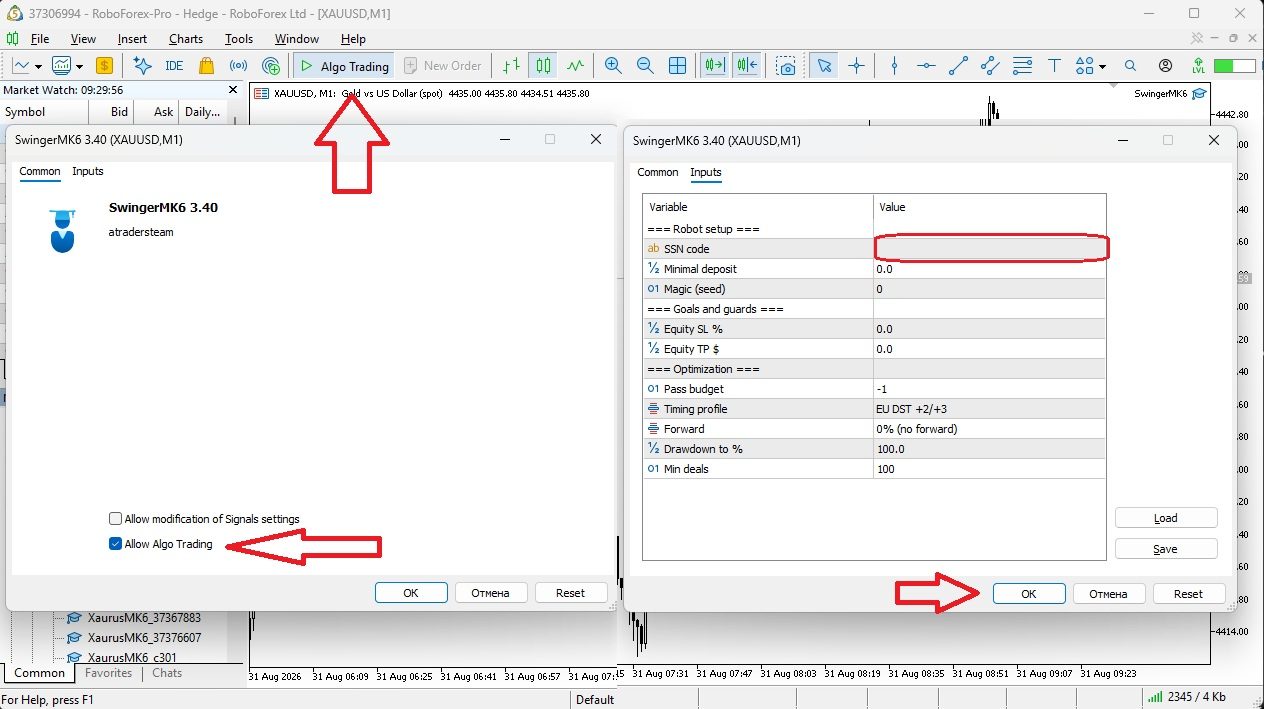
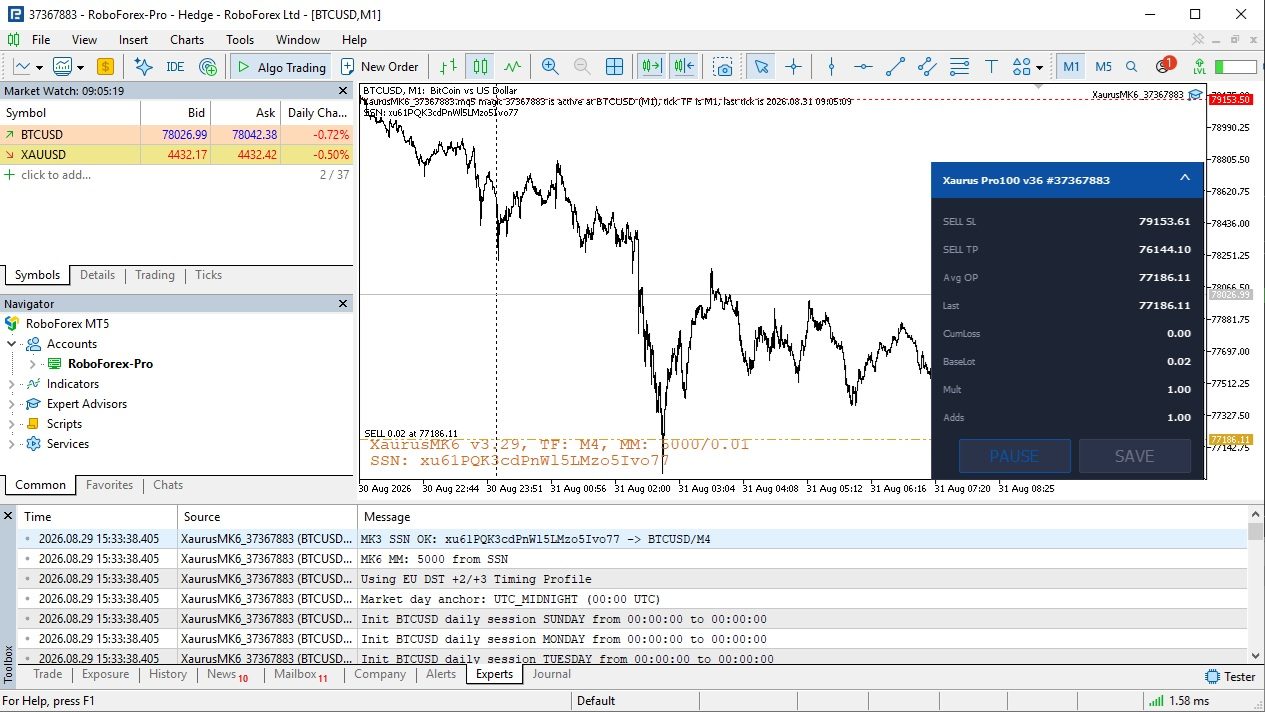
8.3What you see while it works
- Virtual levels on the chart — the EA's working SL/TP (§1.2). Positions in the terminal carry no stop-losses — that is normal.
- The exception is an active
Equity SL %: a common broker-side stop-loss appears on all the EA's positions, recomputed on every new opening. Don't be surprised by it and don't touch it. - The EA panel on the chart. The Pause button suspends the trading logic (the EA opens and manages nothing); pressing it again resumes. The other panel elements are for special cases — leave them alone in normal operation.
ANY INTERFERENCE WITH THE TRADING ON THE EA'S ACCOUNT MAY STOP THE ALGORITHM
Do not close or modify the EA's positions, do not place your own orders on its account, do not switch it off mid-series without necessity. If trading must be stopped immediately: first remove the EA from the chart, then close the positions manually — accepting the current result of the series.
8.4Restarts and recovery
A terminal or VPS restart is not a problem: on start the EA restores the state of the current series (from its state file and the account's open positions) and carries on. If a mismatch is detected during recovery (e.g. positions changed while the EA was off), it reports this with an Alert and a journal line — figure out the cause before continuing.
8.5Emergencies: the EA has stopped
The Robot stopped functioning. notice on the chart means the EA has halted: positions closed, trading stopped. Possible causes and actions:
| Cause (journal) | What it means and what to do |
|---|---|
| Equity rose above maximum… | The Equity TP $ target is reached — the plan is complete. Lock in the
result (§1.4): withdraw the profit; for a new
round — re-optimize for the current market and set a new target plan. |
The Equity SL % stop fired |
The series was closed by the protective stop. Do not restart mechanically: check whether the set is still current — run it as a test over the latest history (§4); most often a re-optimization is due (§5). |
| Margin call / Stop out | The deposit is exhausted — the instrument's ultimate risk has materialized (§1.1). Further decisions — only with a new risk plan and a fresh optimization. |
Resuming after a halt is a deliberate act: re-attach the EA to the chart (or change its inputs — that reinitializes it) once the cause is understood and the decision is made.
8.6Scheduled set rotation
The AI Pro100 working cycle (§1.4): trade a set for roughly ¼ of its test period or until the target is reached — then re-optimize for the latest market and start again. Do not get attached to a spent set: the system's strength is cheap and fast self-optimization, not “eternal” settings.
9Appendix: messages and common questions
| Symptom / message | Cause and action |
|---|---|
| chart period is … — AI Optimization runs on M1 only | AI optimization runs on the M1 chart only — switch the tester Timeframe to M1. |
| Runtime error E14 | The modelling is not “Open prices only” — the run aborted itself, no book. Select the right model and start again (§5.1). |
| Init failed: these settings repeat a completed run… | A finished run is being repeated with the same settings. Clear the tester cache (right-click the run → delete) or change Magic; if the cache is already cleared — a second Start forces a fresh run. |
| Init failed: previous run … was interrupted and would be discarded… | The changed settings would kill the interrupted run. Restore the previous ones — it resumes; a second Start with the new ones — a conscious abandonment (§6.4). |
| AI Optimization INTERRUPTED at … passes | The run is paused (Stop/failure). Start with the same settings resumes it (§6.4). |
| "Pass budget" … looks like a confirmation pass number / is above the maximum | A row number left in the input after clicking the results table, not a budget. Type the budget anew (§5.4). |
| Optimization tab: lots of zeros in Result | Normal: zero is shown by passes that failed the filters and by the search passes of forward mode. The true ratings of all passes are in the book (§6.1–6.2). |
| The journal showcase is empty | Not a single pass with Rating > 0 — the period/instrument yielded no positives. Widen the period, check the time profile, soften the filters. |
Few rows in the book, a large filtered_out on the Info sheet |
Strict Drawdown to % / Min deals filters: failing rows
do not enter the book. Soften the
thresholds or extend the period (§6.2). |
Exactly 100 rows in a cluster, cap_out_all /
cap_out_gm on the Info sheet |
Normal: a cluster contributes at most 100 rows to each sheet, and every sheet
counts them by its own metric — ALL by Rating, ALLGM by GMon %,
Weighted the 50 best by Rating plus the 50 best by GMon %; the rest
is the tail (§5.3). |
| An ∞ sign in the Rating column | The criterion overflowed (near-zero drawdown or a very short period). The row is not broken, but comparing it by rating is meaningless. |
| Input defaults do not behave like defaults | The tester loaded a remembered input profile. Delete
MQL5\Profiles\Tester\<EA>.set or set the inputs explicitly. |
| No MM ladder in the book (no MM min column) | The optimization checkbox on Minimal deposit was not ticked, or the
axis range does not go below the base (§6.3). |
| Passes “hang” at the start of an optimization | Agents are waiting for the plan from the managing instance — seconds are normal. Longer than a minute — check whether another optimization of the same EA is running on this machine (one at a time per EA; Xaurus and Swinger in parallel are fine). |
| The run uses a different time profile than the input | Normal: in tests and trading the profile comes from the set's SSN, the input acts only during optimization (§7.4). What was applied — the Using … Timing Profile line. |
| The Market demo does not run the optimization | An mql5.com marketplace limitation for demos. Use the tester build from the package (§3). |
AI Pro100 by Xaurus.Pro © 2025–2026 · Trader's Guide v1.2 (September 2026). Expert Advisors: Xaurus AI Pro100, Swinger AI Pro100. Leveraged trading carries high risk: use only funds you can afford to lose (§1.1).
Ready-made settings sets (SSN)
Current example settings for the Xaurus AI Pro100 and Swinger AI Pro100 EAs.
The example setups are given for a RoboForex Pro account — this is a cent account, so to trade these setups the minimum deposit must equal the “Deposit” value / 100. For example, if the Strategy Tester specifies a starting test deposit of 10 000 USD, this means that to start trading with this SSN you will need to fund your RoboForex Pro account with 100 dollars or more.
Don't have the EA? You can download Xaurus AI Pro100 and Swinger AI Pro100 for testing here — the test versions are for the Strategy Tester only (no trading on accounts); see the Robots tabs for details.
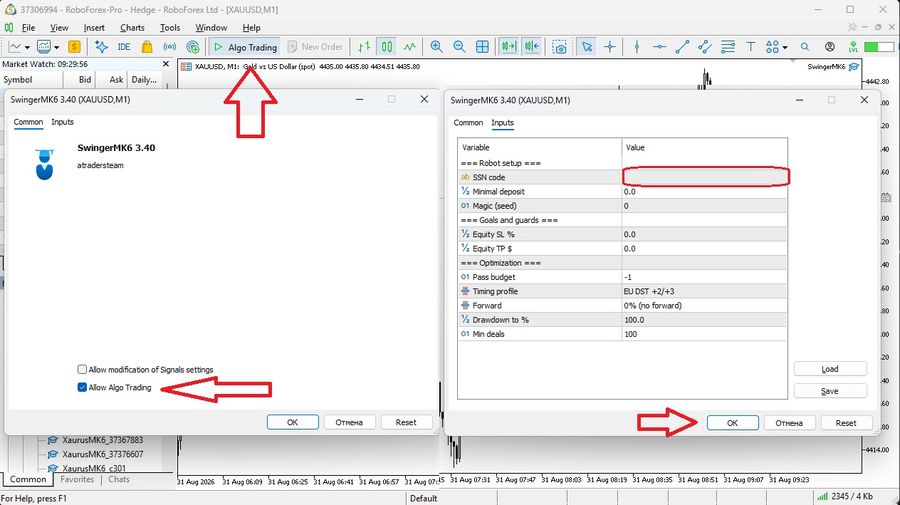
To run a test, configure the Strategy Tester's Settings tab according to the group's parameters (symbol, period, deposit, leverage) and enter the SSN you are interested in into the EA's SSN code field (Inputs tab). All other parameters must be left at their defaults. The M1 timeframe is the universal TF for running all AI Pro100 SSNs. You may use any modelling mode for the test.
To view the test SSNs, use a connection to a RoboForex.Pro account; if you do not have a personal area with this broker, you can use our test access with the login and password in the screenshot below.
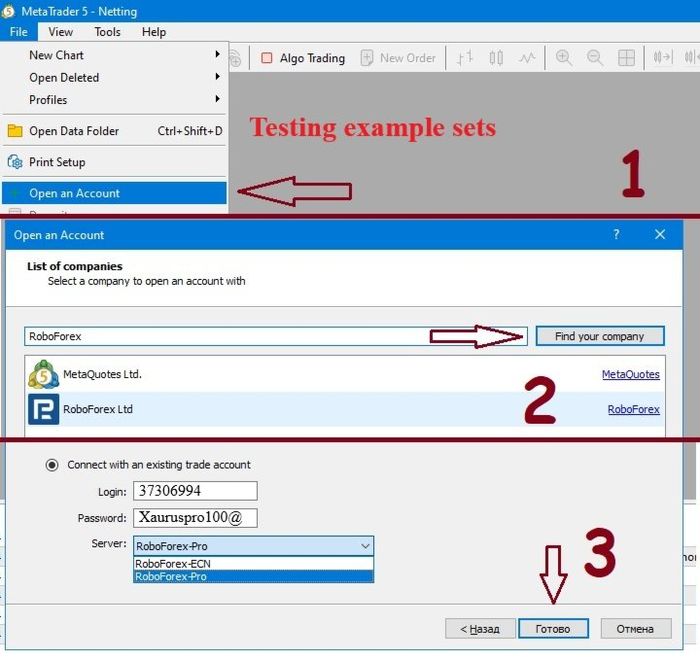
To trade these settings on your own accounts (after purchasing or renting the EA), it is enough to paste the SSN into the SSN code field and enable automated trading. However, please note that these SSNs are provided as examples and are not trading recommendations; for live trading we recommend optimizing the EA yourself and searching for SSNs that suit you — and this can be done even in the demo version of the robot.
Aggressive settings may lead to high returns, but they are also accompanied by significant drawdown and the risk of partial or complete loss of the deposit. Past results do not guarantee future returns.
Updated: — · source: mql5 blog
Ready-made files for the tester
Under each screenshot there are two files with the SSN already filled in. .ini — tester settings (symbol, period, deposit, leverage, inputs): right-click anywhere in the Settings tab of the MetaTrader 5 Strategy Tester → Load… and select the file. .set — the EA's inputs only: right-click in the Parameters tab → Load…. First select your EA file in the tester — the test version or the purchased one — then load the files: they do not change the “Expert” field.
Invest — copy AI Pro100 trading via CopyFX
CopyFX is the trade-copying service of the broker RoboForex: an investor subscribes to a trader's account, and that account's trades are replicated on the investor's own account. The service is provided by RoboForex under its own licence; xaurus.pro is the author of the strategies and the owner of the master accounts and does not accept investors' funds. Past results do not determine future ones.
Investment terms
Trader's commission
30 % of profit. The commission is withheld by the CopyFX service at settlement.
Payouts
Every 2 weeks. Some strategies have a payout period of every 4 weeks; the actual value is shown on the account card.
Minimum deposit
100 USD on ProCent accounts, 500 USD on ECN accounts. The value for each strategy is shown on its account card.
Accounts
MT5 ProCent (cent) and MT5 ECN accounts with the broker RoboForex; the type is shown on the account card. Subscription is instant (Instant).
How to connect
- Register with RoboForex (personal area).
- Open an MT5 trading account and fund it with at least the minimum deposit of the chosen strategy (100 USD — ProCent, 500 USD — ECN).
- Click the Subscribe button on the page of the chosen strategy — the subscription is activated instantly.
Accounts to copy
Strategies of the trader XaurusQuant in the CopyFX rating — sorted by return, highest first.
CopyFX data as of —.
Past results do not guarantee future results. The investor risks the entire amount allocated for copying — as does the trader whose trades are copied. Availability of the CopyFX service and the terms of service depend on the client's country of residence in accordance with RoboForex rules.
Hall of Fame
The methodology is simple: the profit target and the time target are set before trading starts — the Equity TP $ input (see §1.4 of the guide). When the target is reached, all positions are closed, trading stops, the account “graduates” into the Hall of Fame, and the robot starts a new round with re-optimization for the current market (see §8.6 of the guide).
Past-period results, not a forecast or a promise of returns: each account was closed once its target was reached, and the strategy was re-optimised for the current market. Leveraged trading involves the risk of capital loss — see the risk warning.
Case No. 1 — live CopyFX account, closed at +1,036% with a 27.0% drawdown
The CopyFX strategy “AGGRESSIVE SETTINGS”. Its stated target — up to +1,000% in 6 months — was met: on 10 October 2026 the funds were withdrawn, the account stopped and graduated into the Hall of Fame.
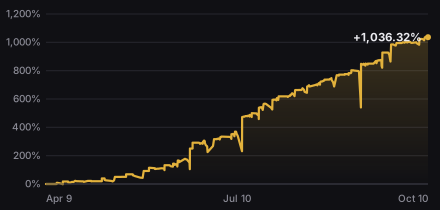
| Account | 37328492 · live · USD (ProCent, cent account) · RoboForex-Pro · leverage 1:2000 · MetaTrader 5 |
| Robot | Xaurus AI Pro100, XAUUSD |
| Period | Apr 9 — Oct 10, 2026 |
| Start → result | 1,000 → 5,894.94 USD withdrawn (+1,036.32% per CopyFX) |
| Drawdown · trades | 26.97% · 585 trades · profit factor 1.90 |
| Report | myfxbook monitoring · MetaTrader 5 report (PDF) |
Case No. 2 — live account, closed at +1,009% with a 39.7% drawdown
The “S2 Setup 61155 / XU / 1000” set. The profit target was reached on 31 March 2026: positions closed, funds withdrawn, the account stopped and graduated into the Hall of Fame.
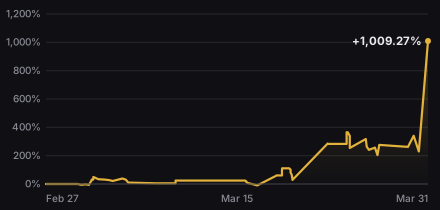
| Account | 37306994 · live · USD · RoboForex-Pro · leverage 1:2000 · MetaTrader 5 |
| Robot | Xaurus AI Pro100, XAUUSD |
| Period | Mar 2 — Mar 31, 2026 |
| Start → result | 1,000 → 11,092.06 USD (+1,009.27%) |
| Drawdown · trades | 39.73% · 70 trades · profit factor 2.82 |
| Report | myfxbook monitoring · MetaTrader 5 report (PDF) |
Case No. 3 — demo account, closed at +1,268% with a 72.9% drawdown
The “S2 Preliminary Set” — a trial run on a demo account before going live. Drawdown reached 72.9% along the way: this is an aggressive mode, not a model risk profile.
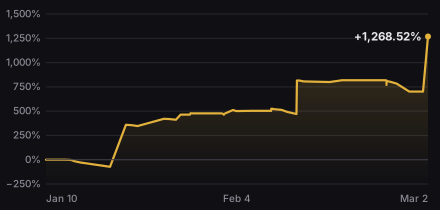
| Account | 68278510 · demo · USD · RoboForex-Pro · leverage 1:2000 · MetaTrader 5 |
| Robot | Xaurus AI Pro100, XAUUSD |
| Period | Jan 12 — Mar 2, 2026 |
| Start → result | 10,000 → 136,863.03 USD (+1,268.52%) |
| Drawdown · trades | 72.92% · 58 trades · profit factor 4.65 |
| Report | myfxbook monitoring · MetaTrader 5 report (PDF) |
The most recent accounts are at the top.
Promos
Three current offers. The coupon is named when you contact us in Telegram — before payment. Valid until 01.01.2027. Promos do not stack — only one applies.

instead of
− on direct purchase via the site
DIRECT20- The robot's price on direct purchase is instead of on mql5.com.
- Rent is only on mql5.com (); there is no direct rent.
- Payment — Telegram wallet or USDT.
- Licence difference: on mql5.com a purchase is limited to 5 activations bound to hardware; on direct purchase the licence is limited to 20 specific trading account numbers.
- The buyer provides the account numbers right away or at any other time after the purchase.
- At purchase the buyer provides an email and Telegram username — official communication is conducted only through them. No communication is conducted from other contacts.
- Valid until 01.01.2027; promos do not stack — only one applies.
for both
2 robots for the price of one — for both
TWOFOR1- Sales-launch promo: Xaurus AI Pro100 and Swinger AI Pro100 — for both (the price of one robot on mql5.com).
- Valid only on direct purchase via the site.
- The licence for each robot is 20 specific trading account numbers; payment — Telegram wallet or USDT.
- Rent is only on mql5.com () and is not part of the promo.
- Valid until 01.01.2027; promos do not stack — only one applies.
for 5★ — second robot for
STAR50- The second robot on direct purchase — (− off the price on mql5.com).
- Conditions: the first robot was bought on mql5.com and a 5★ review was left on the product.
- Payment — Telegram wallet or USDT; licence — 20 specific trading account numbers.
- Rent is only on mql5.com () and is not part of the promo.
- Valid until 01.01.2027; promos do not stack — only one applies.
Purchase terms
| Price | per robot on mql5.com; on direct purchase via the site — (code DIRECT20). Rent — only on mql5.com, . |
| Included | The .ex5 build of the chosen robot — Xaurus AI Pro100 or Swinger AI Pro100 — plus updates and the trader's guide. Non-exclusive licence with no time limit. |
| Accounts | Up to 20 trading account numbers per licence, bound on request at any time; on mql5.com — 5 activations bound to hardware. |
| Payment | Telegram wallet or USDT. The promo code is named before payment; promos do not stack — only one applies. |
| Refunds | None: the software is a digital product, and the licence takes effect once the build is delivered (offer, clause 4). |
| Documents | Public offer · Risk warning |
How to buy direct and bind accounts
Take control — turnkey automation of your trading
Your strategy — our experience and the proven AI Pro100 mechanisms: we automate your trading turnkey — every stage or the ones you choose.
Services are provided by FXLance.com — the project's partner.
Contacts
Sales
Daniyar Kabidenov — head of sales
Telegram: @D_Kab_86
Direct purchase, promo coupons, account number binding and support — through this contact. The official channel of communication with the buyer is the Telegram account and email provided at purchase; no communication is conducted from other contacts.
Message us in TelegramDevelopment
Ilya Malev — lead developer, project engineer at FXLance.com
Telegram: @imyavel
mql5: antfx
Technical questions about the robots; cooperation in trading software development.
Message us in TelegramTelegram
Channel for signal subscribers: @XaurusQuant
Discussion group: @xauruspro
The channel and group are public; purchase questions are handled only through the sales contact.
The site is developed and maintained by FXLance.com.
Public offer (licence agreement)
Revision of 06.09.2026. Rights holder: the xaurus.pro website.
1. Terms
Rights holder — [name / full name], the holder of the exclusive right to the Software and the party granting the right of use under this offer.
Software — the EAs of the AI Pro100 family: Xaurus AI Pro100 and Swinger AI Pro100 — two different trading systems with the identical AI Pro100 self-optimization mechanism, their demo and test builds, accompanying documentation and updates provided by the Rights holder. The right of use is granted for each EA separately.
User — a person who has accepted the terms of this offer and obtained the right to use the Software.
Official contact — the e-mail address and Telegram username provided by the User at the time of purchase.
Terminal — the MetaTrader 5 trading platform.
2. Subject of the offer
This offer is a proposal by the Rights holder to conclude a licence agreement on the terms set out below when the right to use the Software is acquired directly from the Rights holder through the xaurus.pro website (hereinafter — direct purchase). The Software is software for testing trading strategies in the MetaTrader 5 terminal. By acquiring the right to use the Software, the User obtains the ability to test the trading strategy built into the respective EA on their own quotes and on the historical data of their choice, and to make use of the built-in parameter optimization mechanisms.
The Software is not a financial service, investment advice, an asset management service or consulting. The Rights holder does not take the User's funds under management and does not execute trades on the User's behalf.
3. Scope of the rights granted
The User is granted a non-exclusive, non-transferable licence to use the Software for its intended purpose, without the right to sublicense. The licence is granted for use on the User's trading accounts, up to 20 specific trading account numbers, provided by the User to the Rights holder at the time of purchase or at any time thereafter. Each new account is bound at the User's request, sent from the official contact in free form; in response, the Rights holder provides an updated build of the Software or notifies the User that the limit has been exhausted. Once the limit of 20 numbers is exhausted, further use of the Software on new accounts is possible subject to the purchase of a new licence. Replacement of previously provided numbers, as well as the procedure and timing of such replacement, is determined by the Rights holder.
The right of use is granted for the term of the exclusive right.
4. Purchase procedure, payment and interaction between the parties
Payment of the fee for a direct purchase is made via the Telegram wallet or in USDT using the details provided by the Rights holder in correspondence. The code of the current promo is stated by the User before payment; promos are not combined — only one is applied.
The fee paid is not refundable. The Software is a digital product: after payment the distribution package is delivered to the User, the build is bound to the trading account numbers they provided, and from that moment the licence is deemed granted — it cannot be revoked and the distribution package cannot be returned, and the Rights holder's obligations to deliver the Software are deemed fulfilled. The free demo version (the test build and the guide) allows the suitability of the Software to be assessed before purchase; the User makes the decision to pay on the basis of such an assessment.
For a direct purchase, the User provides the Rights holder with an e-mail address and a Telegram username. These contacts are the sole official channel of interaction between the parties: delivery of the distribution package and updates, provision of trading account numbers, support requests and any other notices. Interaction initiated from other contacts is not recognized as official and does not give rise to any obligations of the Rights holder.
The User is solely responsible for the accuracy and availability of the specified contacts and bears the risk of the consequences of their loss or compromise. Official contacts are changed at a request sent from the previously specified contacts.
5. Restrictions on use
The User may not: decompile, disassemble or deobfuscate the Software, or otherwise examine it with the aim of recovering its source code or algorithms; modify the Software; circumvent or remove technical protection measures, including the licensing and binding mechanisms; reproduce or distribute the Software, including transferring, selling, renting out, publishing it in open access or providing access to it to third parties; use the Software to create derivative products.
A breach of this section results in termination of the licence without a refund of the fee paid and does not release the infringer from liability under local and international law.
6. Disclaimer of warranties
The Software is provided on an “as is” basis. The Rights holder does not warrant uninterrupted or error-free operation of the Software, its compatibility with a specific hardware configuration, terminal version, the conditions of a specific broker, account type or quote source, or the fitness of the Software for the purposes the User sets for themselves.
The Rights holder makes no representations and assumes no obligations regarding the return, profitability or any other financial results of using the Software. Backtest results on historical data, published example settings (SSN), test screenshots and charts are an illustration of how the testing algorithm works and are not trading recommendations, a forecast or a promise of results.
7. Limitation of liability
Use of the Software as a trading tool is carried out by the User at their own risk. The decision to apply the Software on a live account, the choice of the settings set, the deposit size, the leverage, the risk parameters and the moment to stop trading is made solely by the User.
No losses, direct or indirect, including lost profit, full or partial loss of the deposit, data recovery expenses and costs related to the suspension of trading, may serve as grounds for claims against the Rights holder as the supplier of the Software. In all cases where the liability of the Rights holder cannot be excluded by law, it is limited to the amount of the fee actually paid by the User for the right to use the Software.
8. Other terms
Acceptance of this offer is the payment of the fee for the right to use the Software. Acceptance means full and unconditional acceptance of the terms of the offer in the revision in force at the time of payment, including the no-refund clause (section 4).
The Rights holder may change the terms of the offer by publishing a new revision on the website; changes are not retroactive and do not apply to rights granted before their publication. The Rights holder may discontinue the release of updates and change the functionality of the Software in new versions.
Risk warning and disclaimer
Risks of margin trading
Trading on financial markets with leverage involves a high level of risk and is not suitable for everyone. Leverage increases both the potential profit and the potential losses: an adverse price move can lead to the loss of the entire amount placed on the trading account within a short time. Additional risks arise from price gaps, slippage on execution, spread widening, trading suspensions, and technical failures on the side of the broker, the quote provider or the internet connection.
Place on the trading account only the funds you can afford to lose. Funds that need to be preserved should not take part in such trading. The software's protective mechanisms, including the equity drawdown limit, are a risk-control tool, not a guarantee: with price gaps and slippage, the actual result may turn out worse than the calculated one.
No promise of profit
There is no promise of profit on this site. All SSN codes and charts we present are provided as examples of how the backtesting algorithm works on historical data and are not trading recommendations. Although they can be entered in the SSN code field and traded right away, we do not recommend doing so; instead, we recommend that you re-optimize the robot yourself and search for settings according to the AI Pro100 guide — this can be done even before purchasing the robot.
Results obtained on historical data do not guarantee similar results in the future. Settings found by optimization relate to a specific quote source — the broker and account type — and to a specific history period; if any of these conditions changes, re-optimization may be required.
Status of the software
AI Pro100 is software for testing trading strategies in the MetaTrader 5 terminal. It is not an investment recommendation, a financial service or an asset-management service. Use of the software as a means of trading is carried out by the user at their own risk; no losses, direct or indirect, can serve as grounds for claims against the software provider (see the Offer).
The “Invest” and “Turnkey” sections
The “Invest” section is devoted to the CopyFX trade-copying service of the RoboForex broker; the materials placed there are of an advertising nature. We are not a broker, we do not accept investors' funds and we do not manage them: subscription to an account, fees and the disconnection procedure are governed by the rules of the service and the investor's agreement with the broker. Trade copying carries the same risks as trading on your own, including the complete loss of the amount placed.
The “Turnkey” section is a partner recommendation of FXLance.com services. The site is developed and maintained by FXLance.com.